You have 200 ChatGPT conversations. You want to try Claude. Or Gemini. Or both. But those conversations don’t come with you. They’re locked inside ChatGPT, and the “Export Data” button in settings gives you a zip file full of raw JSON that nobody wants to read.
I spent months dealing with this exact problem. Switching between AI models and losing everything. Context, code snippets, images, the thread of a conversation that took 30 messages to reach. Gone. Every time.
This article is the guide I wish I had when I started.
What ChatGPT’s Native Export Actually Gives You
When you go to Settings → Data Controls → Export Data in ChatGPT, OpenAI emails you a zip file. Inside is a file called conversations.json. Here’s what a single message looks like in that file:
{
  "title": "Debug Chrome Extension",
  "create_time": 1706140800.0,
  "mapping": {
    "aaa-bbb-ccc": {
      "message": {
        "content": {
          "parts": ["Can you help me fix this error?"]
        },
        "author": { "role": "user" }
      },
      "parent": "xxx-yyy-zzz",
      "children": ["ddd-eee-fff"]
    }
  }
}
This is a tree structure, not a thread. Each message links to its parent and children by UUID. To reconstruct the conversation as you actually experienced it, you need to walk the tree from root to leaf, following the branch you took when you edited or regenerated responses.
Images? Not included. If you shared a screenshot with ChatGPT or it generated a diagram for you, those are referenced by URL, not embedded. The URLs expire. Within a few weeks, your images are gone.
The Three Export Methods, Compared
There are essentially three ways to get your ChatGPT conversations out:
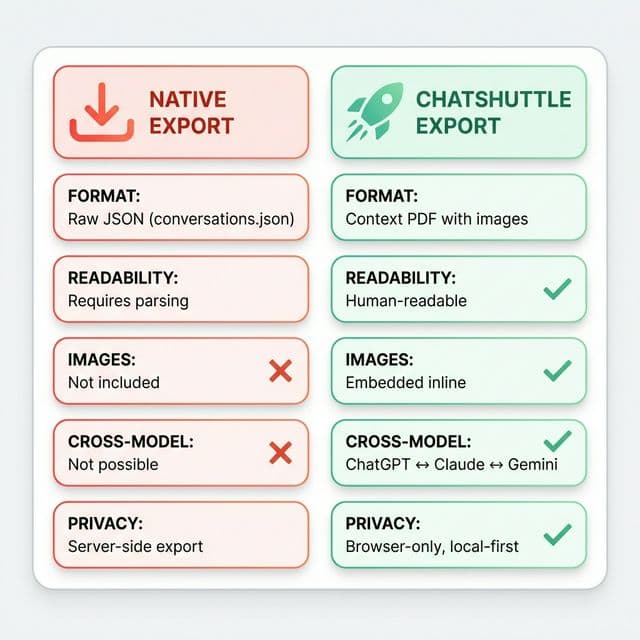
- Native export (Settings → Export Data). Gives you raw JSON. No images. No readability. You can’t send this to Claude and say “continue where we left off.”
- Copy-paste. Works for individual messages. Breaks for long conversations. Loses all formatting, code blocks, and images. Doesn’t scale.
- Browser extension (like ChatShuttle). Captures the rendered conversation directly from the DOM, including images, and outputs a format another AI model can actually read.
How the Export Flow Works
ChatShuttle captures your conversation in three steps. The entire pipeline runs in your browser. Nothing leaves Chrome unless you explicitly save to Google Drive.
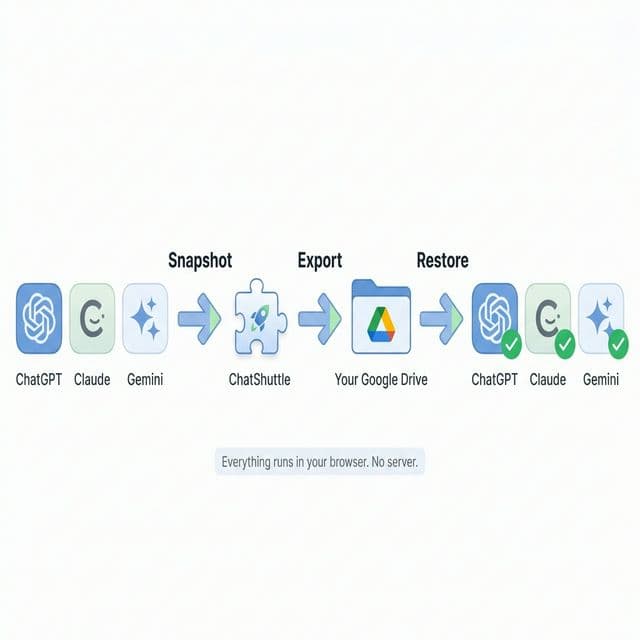
Step 1: Snapshot
Open a ChatGPT conversation. Click the ChatShuttle icon in Chrome’s side panel. Hit “Snapshot.”
What happens behind the scenes: The extension reads the page’s DOM, parses the conversation structure, extracts each message with its role (user/assistant), captures inline images as base64-encoded data, and preserves code blocks with their syntax highlighting metadata.
This is different from the native export because it captures what you see, not what’s stored on OpenAI’s servers. The rendered conversation includes generated images that are still loaded. The JSON export references URLs that may already be expired.
Step 2: Context PDF
The captured thread is transformed into a Context PDF. This isn’t a screenshot. It’s a structured document that contains:
- Every message with its role label (You / Assistant)
- Code blocks with formatting intact
- Images embedded inline, not linked
- Conversation metadata (title, date, model used)
The PDF format was a deliberate choice. I wrote about why in a separate article. The short version: PDF is the one format that every AI model can read natively. You can attach a PDF to Claude, upload it to Gemini, or drop it into a ChatGPT conversation, and the model understands the structure.
Step 3: Google Drive Backup
The Context PDF is saved to your Google Drive. Not to a ChatShuttle server. Not to S3. Your personal Drive folder, using Chrome’s identity API for authentication and the Drive API for file operations.
So your conversation backups are:
- Accessible from any device
- Searchable in Google Drive
- Under your control (you can delete them anytime)
- Not dependent on ChatShuttle’s infrastructure (there is none)
The Architecture: Why Local-First Matters
Most export tools send your conversations through a server. ChatShuttle doesn’t. The entire pipeline runs inside Chrome’s extension sandbox.
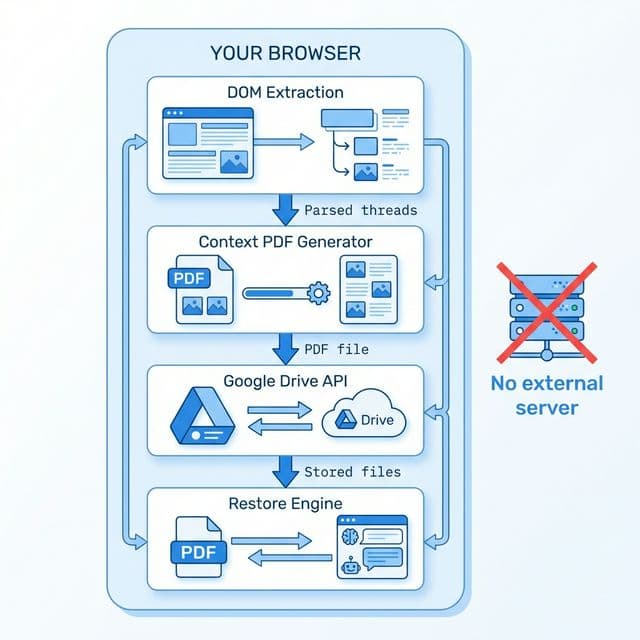
This design has tradeoffs. Running everything in the browser means you can’t process conversations in bulk on a server. You can’t do background syncing when Chrome is closed. You can’t build a cross-device service without Google Drive as the glue layer.
The upside:
- No account needed. You sign in with Google for Drive access. ChatShuttle has no user database.
- No data leaves your browser. The conversation text never touches a server you don’t control.
- No subscription model. No server = no marginal cost per user = one-time purchase is possible.
Restoring in Claude or Gemini
Once you have a Context PDF in Google Drive, restoring it in another AI model is straightforward:
- Open Claude (or Gemini) in your browser.
- Open ChatShuttle’s side panel.
- Click “Restore” and select the conversation.
- ChatShuttle attaches the Context PDF to a new conversation and instructs the model to continue from where you left off.
The model reads the PDF, understands the conversation history, and picks up the thread. It’s not perfect. You lose the model’s internal state (the attention weights, the token probabilities). But you keep the conversation content, and that’s what matters for most use cases: continuing a debugging session, resuming a writing project, or picking up a research thread.
What About Other Chrome Extensions?
There are several ChatGPT export extensions on the Chrome Web Store. Here’s how they differ:
- ExportGPT / ChatGPT Exporter: Exports in multiple formats (PDF, Markdown, Word). Good for archiving. Doesn’t do cross-model restore.
- ChatGPT Prompt Genius: Saves to PDF/PNG. Focused on prompt management, not migration.
- Save ChatGPT: TXT and Markdown formats. No image support.
The gap these tools leave open is the full loop: capture from one model, store securely, and restore in a different model with context preserved. That’s what ChatShuttle does differently. Not just export. Migration.
The Image Problem
Images are the part most people overlook until their export is already broken.
When you share an image with ChatGPT, or when ChatGPT generates one using DALL-E, the image is stored on OpenAI’s CDN. The URL looks like:
https://files.oaiusercontent.com/file-abc123...
?se=2024-01-25&sp=r&sv=2021-08-06&sr=b&sig=...
Those query parameters are a signed URL with an expiration date. After that date, the image 404s. The native JSON export includes these URLs, not the image data. So your “export” is already partially broken the moment you download it.
ChatShuttle captures images differently: it reads the rendered <img> element from the DOM, converts it to a base64-encoded PNG using a canvas element, and embeds it directly in the Context PDF. No expiring URLs. No CDN dependency. The image data is in the file.
Batch Export
Exporting one conversation is easy. Exporting 200 is a different problem.
ChatShuttle handles this through the ChatGPT export zip file. You download the native export from OpenAI (the raw JSON), then import that zip into ChatShuttle. The extension parses the JSON, reconstructs the conversation threads, and generates Context PDFs for each one. You choose which conversations to export and which to skip.
This is a hybrid approach: use OpenAI’s server-side export for the bulk text data (which the JSON handles well), then enhance it with the Context PDF format for readability and cross-model compatibility. Images from the JSON import are limited to what the URLs still resolve to, so this works best when done soon after the native export.
For step-by-step instructions, see the import guide.
Privacy Considerations
Your AI conversations probably contain code, drafts, half-formed ideas, project context you wouldn’t post publicly. You should care about where any export tool sends that data.
Questions to ask about any export tool:
- Does the tool run a server? If yes, your conversations pass through infrastructure you don’t control.
- Does the tool require an account? If yes, there’s a user database linking you to your conversations.
- Where are the exports stored? A third-party cloud? Your own Drive? Local filesystem?
- Can you audit the code? Open-source tools let you verify claims about data handling.
ChatShuttle’s answers: no server, no account (beyond Google sign-in for Drive), exports go to your Drive, and the permission audit shows exactly what Chrome APIs the extension uses.
Getting Started
The free version of ChatShuttle handles individual conversation snapshots. Pro adds batch import from ChatGPT’s native export, image embedding, and the full restore flow.
If you want to start with a single conversation:
- Install ChatShuttle from the Chrome Web Store.
- Open a ChatGPT conversation.
- Click the ChatShuttle icon → Snapshot.
- Your conversation is captured. Save to Drive or export.
If you want to export your entire ChatGPT history at once, the import guide walks through the batch process.
For the technical decisions behind all of this, the full docs cover the architecture, and the Context PDF article explains why PDF was the right format.